
GTA 6 Best Settings: What to Change Before You Play
Grand Theft Auto VI has a deep settings menu, with separate camera, aiming, HUD and accessibility options for almost everything you do. The defaults are fine, but ten minutes in Settings makes the first hours in Leonida a lot more comfortable.
This guide lists the default for each key setting next to what we'd change it to, then covers aiming, camera, HUD, accessibility, audio and your TV.
Where to find the settings menu
Open the pause menu and choose Settings. Rockstar's official settings support article splits the menu into these tabs:
Tab | What you'll find there |
|---|---|
Control Scheme | Button layouts for on foot, aiming, melee, vehicles, aircraft, bicycles, swimming and parachuting |
Controller | Aim and look sensitivity, inverted controls and DualSense features on PS5 |
Gameplay | Combat, movement and accessibility options |
Display | Display, visual effects and high-contrast shaders |
UI | Text size, subtitles, navigation, reticle, HUD and progress notifications, status bars and units |
Camera | On foot, vehicles, comfort, aircraft, underwater and cinematic cameras |
Audio | Setup, volume and narration |
Restore Default and Restore All sit at the bottom of the Settings screen. That makes it safe to experiment, since you can always undo your changes.
Defaults vs what to change them to
Setting | Where | Default | Change it to |
|---|---|---|---|
Targeting | Gameplay | Partial | Lock-On for easy fights, Free Aim for a challenge |
Aim Assist Strength | Gameplay | 4 (scale of 0 to 5) | Leave at 4, or 0 if you play Free Aim |
Control Scheme | Control Scheme | Default | Classic if you're used to GTA 5's buttons |
Subtitles | UI | Mission Only | On, so you catch radio, phone and street chatter |
Motion Blur Strength | Display | 3 | 0 for the sharpest image at 30 FPS |
Camera Shake | Camera | On | Off if chases are hard to follow |
Navigation | UI | Your first-launch pick | Always On while you learn the map |
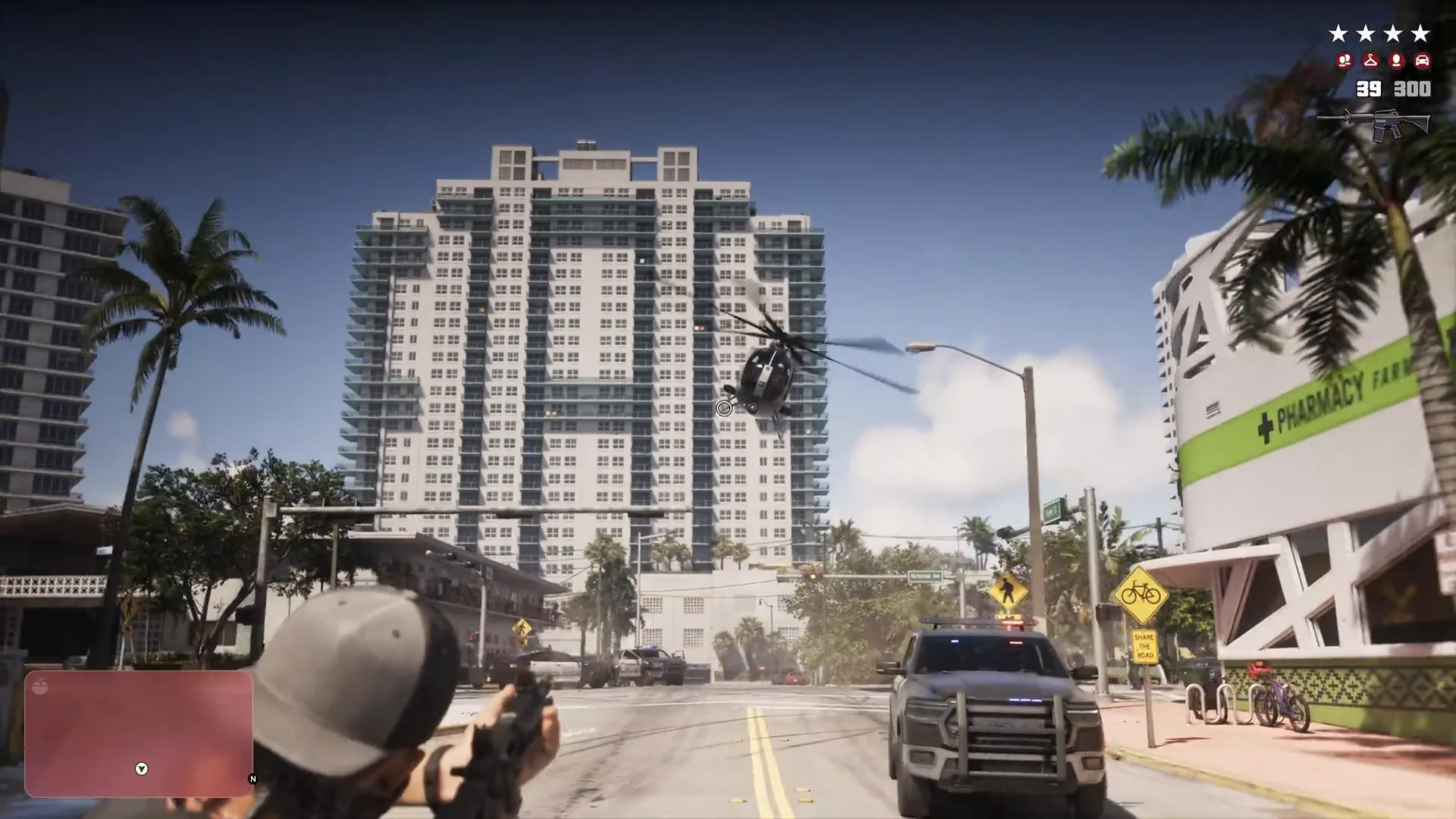
The fuel gauge is also worth switching on in the UI tab before you start flying. It shows above the minimap, and running dry in a plane means a crash.
Navigation Experience: your first choice
The very first thing GTA 6 asks you on launch is which Navigation Experience you want, without showing you what each one looks like. Don't overthink it, because you can change it any time under Settings, UI, then Navigation.
Minimap (Dynamic): The minimap hides in quiet moments, like walking around your house, and appears when you need it or press the d-pad.
Minimap and Compass (Dynamic): The same behavior plus a compass that shows your markers, mission markers and nearby points of interest.
Always On: The navigation display never hides.
Dynamic is the most cinematic option, but Always On is easier while you're still learning the map. The same section lets you toggle individual elements, and you can enlarge map and minimap icons if they're hard to read.
GPS Voice reads out turn-by-turn directions, but it's off by default. Switch it on if you keep missing turns while driving.
Best aiming settings
There are three targeting modes. Lock-On snaps to the nearest enemy, Partial gently pulls your aim toward a nearby target, and Free Aim gives you no help at all.
Setting | Relaxed story play | More of a challenge |
|---|---|---|
Targeting | Lock-On | Free Aim |
Aim Assist Strength | 4 or 5 | 0 |
Shooting Assist | On | Off |
Drive-By Assist | On | Off |
Quick Draw | On | On |
Quick Draw lets L2 and R2 pull out your last-used weapons, so both setups keep it on. Free Aim is also the mode to use if you need to shoot something that isn't an enemy.
If aiming feels twitchy or sluggish, the controller settings also have dead zone, acceleration and response curve options for each stick. Headshots also feed your Focus at some levels, which our Criminal Profile guide explains.
Camera and comfort settings
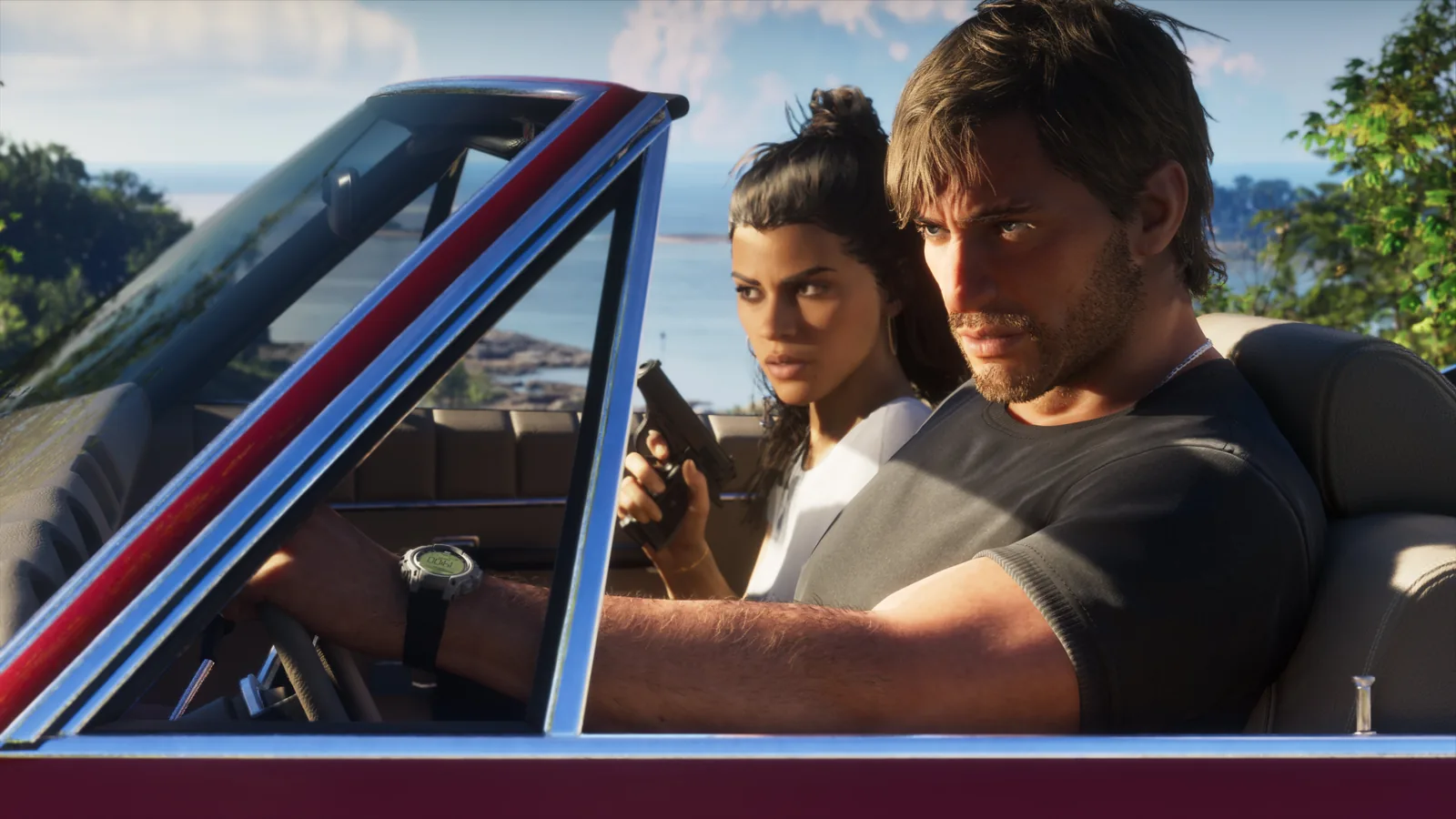
The Camera tab has separate sections for on foot, vehicles, aircraft, underwater and cinematic cameras. There's also a Comfort section, which is the first place to look if the camera makes you feel queasy.
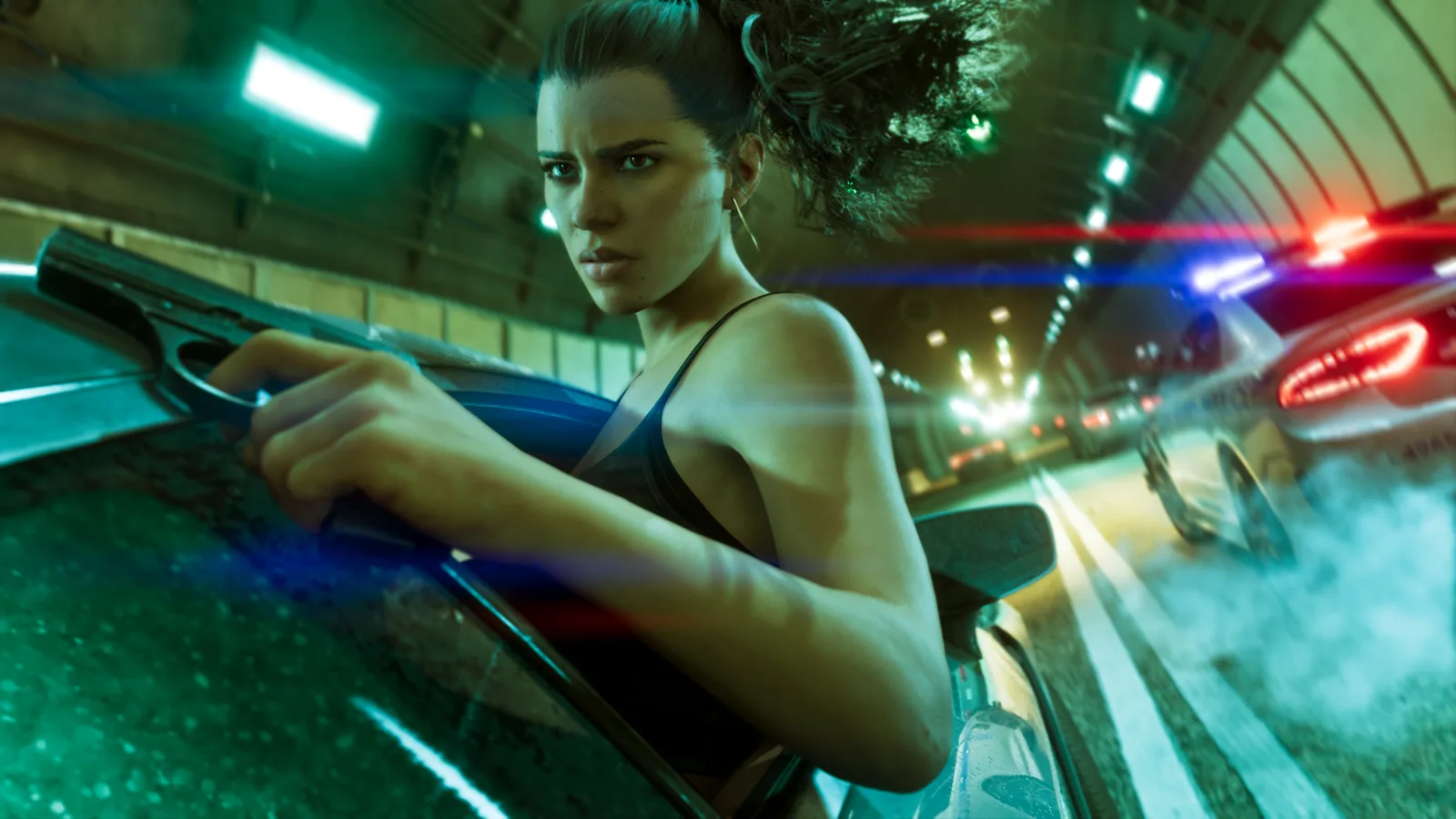
Camera shake: It's a simple on or off switch, and turning it off makes chases and shootouts easier to follow.
Cinematic cameras: The kill-shot and vehicle crash cameras run on a scale up to 5, so lower them if slow-motion replays keep interrupting the action.
Head bob: Tone head bob and camera movement down if walking or driving makes you uneasy.
GTA 6 is a third-person game, and first person only kicks in when you aim certain weapons. See can you play GTA 6 in first person for how that works.
Display and visual effects
There's no performance or quality mode to choose. Rockstar's pre-load announcement confirms the game targets 30 frames per second on every console, which our GTA 6 30 FPS guide covers in detail.
On PS5 Pro, PlayStation Spectral Super Resolution (PSSR) and ray-traced shadows switch on automatically, with no extra options. The Display tab is mostly about how the image looks to you.
Motion blur: The default is 3, and dropping it to 0 gives a crisper picture.
Blood, gore and dismemberment: Gore has three levels and dismemberment is a separate switch, handy if you're playing in a shared room.
Screen effects: Sliders for hit and status effects, plus a gentler flashbang option, cut down flashes and distortion.
High-contrast shaders: These outline characters, enemies and items that you can interact with.
Focus trail colorblind mode: This boosts the colors of the Focus trail if you have trouble telling them apart.
HUD and UI settings
The UI tab has dozens of options covering almost everything drawn on top of the game. These are the ones that make the most difference day to day.
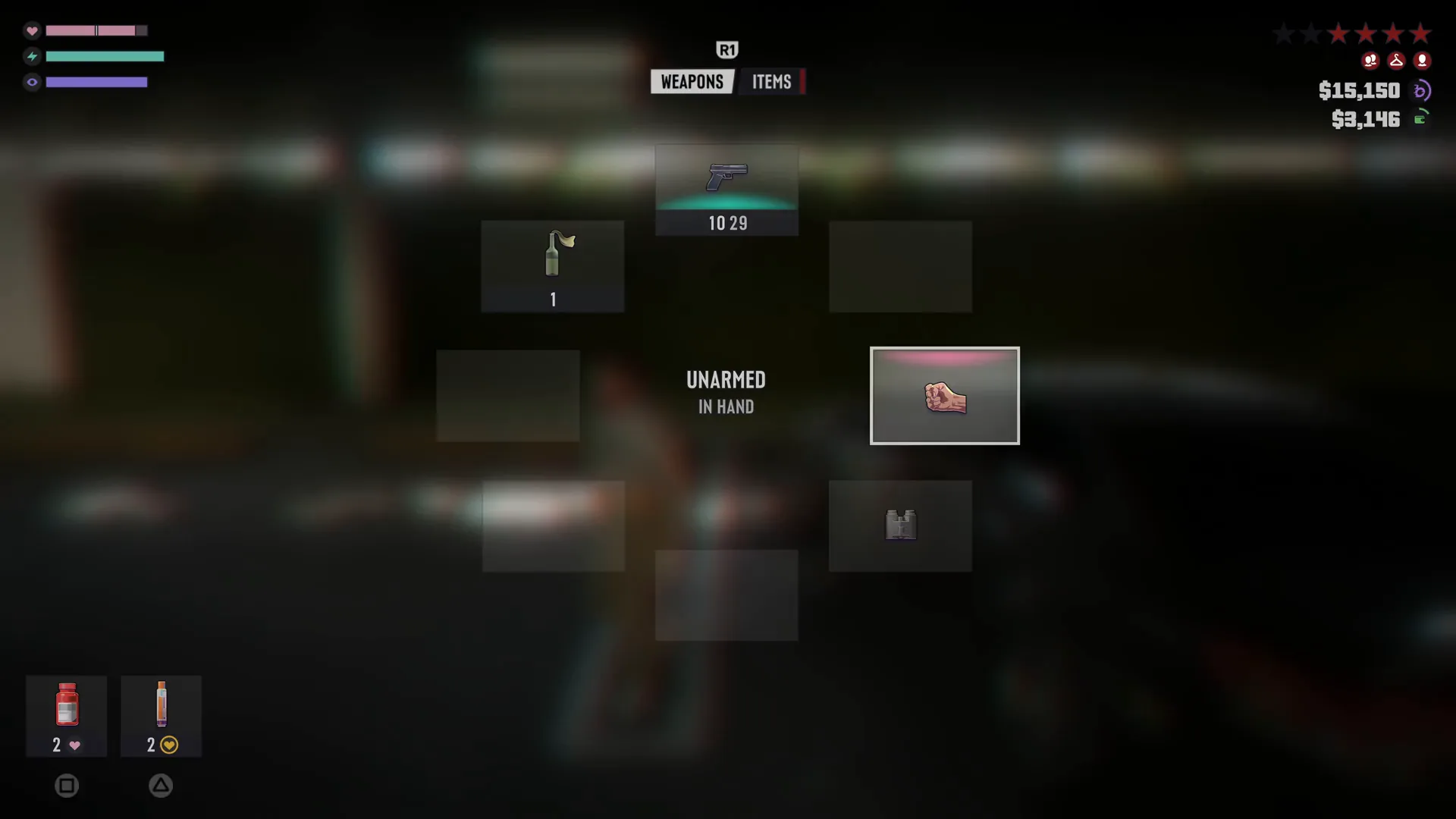
Text size: UI text goes up to X Large, which helps if you sit far from the TV.
Projectile arc: Turn it on to see where grenades and other thrown weapons will land.
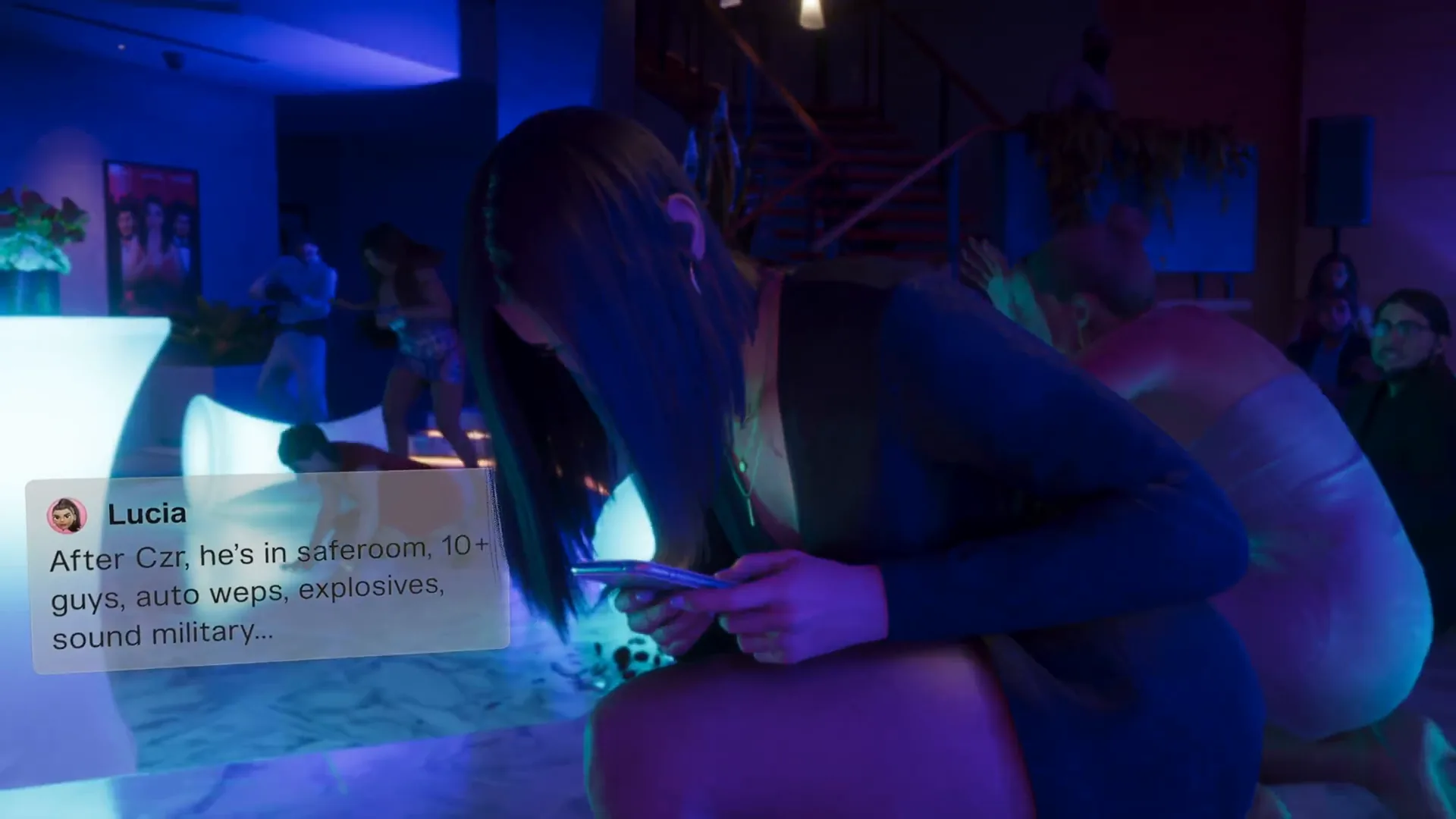
Subtitles and captions: Choose from three sizes, add a background and turn on speaker names so you know who's talking.
HUD notifications: Trim the pop-ups if they clutter the screen, including the icons that appear when your Criminal Profile changes.
The fuel gauge matters most if you plan to steal a jet or explore by plane. Our GTA 6 fighter jet and tank location guide explains why fuel runs out fast in military jets.
Controls, assists and difficulty
GTA 6 has no difficulty setting. Instead, the Gameplay tab has Accessible Combat, which makes enemies weaker and lowers the damage you take, and Reduced Vehicle Damage, which makes getaways more forgiving.
The game warns that both change the balance of play, but neither one locks you out of achievements or trophies. Simplified minigames also make gym workouts, basketball and hotwiring easier.
Control schemes: Pick Default, Classic for GTA 5-style buttons or Left-Handed, which swaps the sticks.
Sprinting: Sprint is on L3 or LS by default instead of tapping a button, and the movement options let you change how stick pressure maps to walking, jogging and sprinting.
Tap and hold assists: Tap Assist reduces button mashing, Hold Assist shortens long presses and Hold Delay prevents accidental inputs.
Hold or toggle: Switch actions like aiming and nitrous from holding to toggling.
Haptics: Rockstar's pre-load announcement notes the DualSense haptics are adjustable through the accessibility settings.
Launch-week hands-on checks haven't turned up free button remapping, only the three layouts. If you need custom mapping, use your console's own settings, covered below.
Audio settings
The Audio tab has separate volume sliders for dialogue, music, sound effects, UI and media, so raise dialogue if the music drowns out conversations. Narration covers the screen reader, which the game offers to turn on the first time you start it.
Licensed music: Turn on the option that mutes licensed music, sometimes called streamer mode, if you stream or record, since Leonida's radio is full of licensed tracks, as our GTA 6 radio stations guide shows.
Tinnitus reduction: Cuts the ringing effect after explosions.
Mono audio: Useful if you play with one earbud or have hearing loss in one ear.
Console and TV settings
A few useful options live outside the game, in your console's own settings. Set them once and GTA 6 picks them up automatically.
HDR on PS5: Go to Settings, then Screen and Video, then Video Output, and choose Adjust HDR.
HDR on Xbox: Go to Settings, then General, then TV and Display Options, and choose Calibrate HDR for Games.
Trigger resistance on PS5: Lower Trigger Effect Intensity under Settings, then Accessories, then Controllers, if the adaptive triggers tire your fingers.
Button remapping: Use Custom Button Assignments in the PS5 accessibility settings, or button mapping in the Xbox accessibility settings.
Spoilers on PS5: Turn on spoiler warnings in the PS5 settings to blur story content flagged as spoilers in other players' screenshots and clips.
3D audio: Turn on 3D Audio for headphones in the PS5 sound settings, or pick Windows Sonic or Dolby Atmos in the Xbox audio settings.
Your TV: Use Game Mode and turn off motion smoothing, while 120Hz output makes no difference at 30 FPS.
Example Scenario: You're coming from GTA 5 and want things to feel familiar. Switch the Control Scheme to Classic, set Targeting to Lock-On, pick the Always On navigation display and switch GPS Voice on until you know the roads.
Example Scenario: Long drives leave you feeling a bit queasy. Turn camera shake off, drop motion blur from 3 to 0 and check the Comfort section of the Camera tab before your next session.
For more early-game advice, see our GTA 6 beginner tips. If something isn't working rather than just looking wrong, our GTA 6 help and error fixes page collects Rockstar's official support answers, including the full settings help article.
FAQ
Does GTA 6 have a difficulty setting?
No. Use Accessible Combat and Reduced Vehicle Damage in the Gameplay tab instead, which don't affect achievements or trophies.
Does GTA 6 have a performance mode?
No. GTA 6 targets 30 FPS on every console, and there's no performance or quality toggle.
Can you remap buttons in GTA 6?
The game offers Default, Classic and Left-Handed layouts, but free remapping hasn't turned up in its menus. You can remap buttons through the PS5 or Xbox accessibility settings instead.
How do I turn off motion blur in GTA 6?
Open Settings, go to the Display tab and lower Motion Blur Strength in Visual Effects. It's set to 3 by default.
How do you sprint in GTA 6?
Click the left stick, L3 on PS5 or LS on Xbox. You can change how stick movement maps to walking, jogging and sprinting in the movement options.
How do I reset my GTA 6 settings?
Use Restore Default or Restore All at the bottom of the Settings screen. It puts everything back the way it started.